First Login in the 66 Lottery App After Installing the APK
What you will see on first launch, how to sign in, and what to do when the app will not let you in
Contents
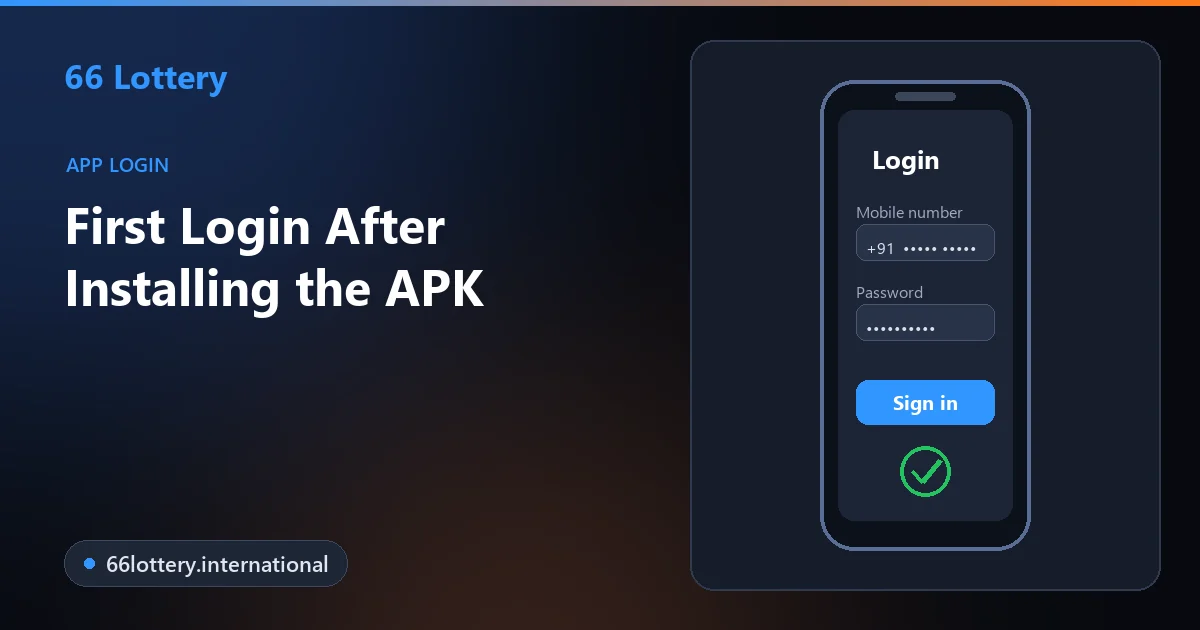
After you install the APK, open the app, choose Login, and enter the same mobile number and password you use on the website. There is no separate app account. If the app shows a blank screen, rejects a password that works in the browser, or keeps demanding an update, the cause is almost always the connection, autofill, or an old copy of the APK — all fixable in a couple of minutes.
This guide picks up exactly where the install finishes. It is written for players searching for the “login game app APK” route into 66 Lottery, and it assumes the app is already on your phone. If it is not, start with the Android APK download guide and come back.
18+ only · Real-money games carry risk · Play within a budget.
Before You Open the App
Thirty seconds of checking now saves a lot of confusion later. First, make sure there is only one copy of the app on the phone. People who have tried several download links often end up with two icons that look almost identical, and the older one may be a modified file or an outdated build that can no longer reach the server. Long-press each icon, open App info, and remove anything you did not install from the official page.
Second, have your login details ready. Your login ID is the mobile number you registered with. Write it the way you entered it at sign-up — most players use the ten-digit number with the country code selected separately, not typed into the field. If you have never registered, you will need the registration steps rather than the login screen.
Third, if Android asked you to allow installs from your browser during setup, you can switch that permission back off now. The app is installed; leaving the setting on only makes it easier for a future rogue file to slip through.
What the First Launch Looks Like
The first time the app opens it may ask for permission to send notifications. Allowing them is optional, but it is how you hear about in-app announcements, including official gift code releases, without opening the app. It should not ask for access to your contacts, SMS inbox or files in order to log in — a request like that on a sign-in screen is a warning sign.
You then land on a lobby that you can browse before signing in, with Login and Register buttons at the top or behind a profile icon. The lobby loading is a good sign: it means the app can reach the server. If you see the game tiles but nothing happens when you tap Login, give it a few seconds on a slow connection before tapping again, since repeated taps can open the form twice.
Signing In Step by Step
- 1Tap Login and choose the phone-number option if the form offers more than one.
- 2Check the country code, then type your registered mobile number without a leading zero.
- 3Enter your password by hand the first time, rather than relying on keyboard autofill.
- 4Tick the remember option only if the phone is yours and nobody else uses it.
- 5Tap the login button and wait for the lobby to show your balance at the top.
Once your balance appears, the login worked and everything — Wingo, colour prediction, K3, 5D and the wallet — opens from the same session. The main login help page has the same steps for the website and desktop, plus the password-reset flow.
When the App Will Not Log You In
Most failed logins after a fresh APK install fall into one of six patterns. Find the one that matches what you see on screen.
The app opens to a blank or endlessly loading screen
The app loads the lobby over the internet, so a weak signal, a data-saver mode or a VPN can stall it. Switch between Wi-Fi and mobile data, turn off the VPN, then close the app fully and reopen it.
“Incorrect password” — but the same password works in the browser
Phone keyboards often add a space after autofilled text or capitalise the first letter. Type the password by hand once, and check the mobile number has no extra zero in front of it.
The SMS code (OTP) never arrives
Wait for the resend timer to finish before asking again — repeated requests can be throttled. Check that SMS from business senders is not blocked on your SIM and that the phone has signal, not just Wi-Fi.
The app keeps asking you to update
An APK does not update itself like a store app. Uninstall the old copy, download the current file again from the official download page and install it fresh. Your account and balance live on the server, not on the phone.
Logged in yesterday, logged out today
Clearing the phone’s cache, a password reset on another device, or a long period of inactivity all end the saved session. Sign in again; if you reset the password elsewhere, use the new one.
The login screen looks different or asks for bank or UPI PIN details
Stop. The genuine sign-in form only asks for your mobile number and password. A screen asking for a UPI PIN or card details means a modified APK. Uninstall it and change your password from the website straight away.
A useful test when you are stuck: try the same details on the website in your phone's browser. If the website works and the app does not, the problem is the install, so reinstall from the official page. If both fail, the problem is the account details, so use Forgot Password.
Keeping the App Login Safe
The app holds a live session to an account with real money in it, so treat the phone the way you would treat a banking app. Use a screen lock, do not share the device while you are signed in, and log out before handing the phone to anyone. If you play on a family phone, skip the remember option altogether.
Your OTP is only ever typed into the app or website yourself. Nobody from support, no agent and no “gift code” sender needs it. Requests for the code usually arrive right after a player has searched for hacks or free codes, which is why the safe download check is worth reading once.
If Nothing Works
When neither the app nor the website will let you in, and a password reset does not arrive, contact support. Have your registered mobile number ready, describe exactly what the screen says, and attach a screenshot of the error. The customer care page explains the official channels and why you should never use a support number found in comments or chat groups.
Play Responsibly
Having the app on your phone makes it very easy to play “just one more round”. Decide your budget and time limit before you open it, and use the tools on the responsible gaming page if it stops being fun. For players aged 18 and over only.
App Login After APK Install — FAQs
No. If you registered on the website, the same mobile number and password work in the app. Your balance, history and rewards are stored on your account, so they appear on whichever device you sign in from.
Usually it is an old or damaged install, or autofill adding a space to the password. Type the password manually first. If it still fails, uninstall the app, download the current APK from the official page and install it again.
No. One login opens the whole lobby, including Wingo, colour prediction, K3 and 5D. There is no separate “colour login” and you should be wary of any page offering one.
No. Uninstalling removes the app from the phone, not your account. Once you sign in again on the fresh install, the balance and history are where you left them.
Stop retrying, as more failed attempts can extend the lock. Use Forgot Password to reset by SMS, or contact customer care from the website if the reset option does not appear.
On your own phone you can tick the remember option, but sessions still end after a password change or a cache clear. Never stay logged in on a shared or borrowed phone.
Signed In? Here Is What to Read Next
See where official reward codes are posted on the gift code page, or learn what the colours mean in the green, red and violet guide.
More guides